Data Access Object (DAO), Java Pet Store Example and
Other Java Technologies 2
Editing the New Web Server Path
Now, in this case, both of the folders (Glassfish installation and pet demo project paths) do not having whitespace(s) anymore.
Next, we need to modify the Glassfish root folder because the original project based on the Sun application server. Open app-server.properties file in any unformatted text editor.
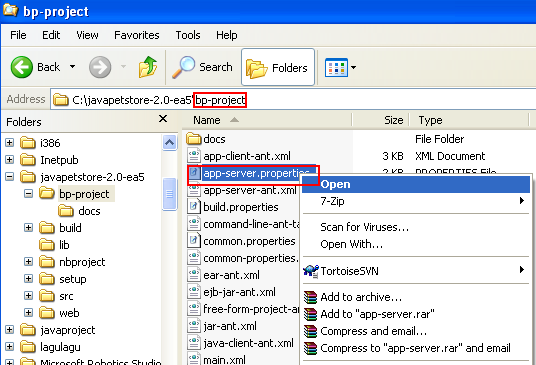
Then, change the following setting:
javaee.home=c:/Sun/AppServer
To the Glassfish installation path and in this case (yours may be different and change accordingly),
C:\sges-v3
Save the file and close it.

The path should match with the physical path as shown below (yours may be different and change accordingly)

Next, open build.properties file in any unformatted text editor.

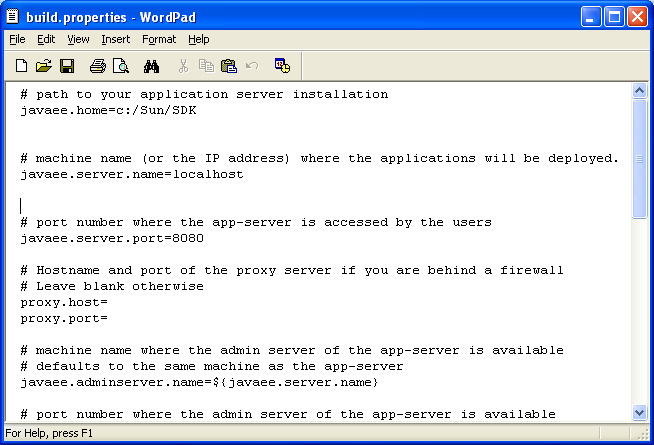
Change the Glassfish installation path from,
# path to your application server installation
javaee.home=c:/Sun/SDK
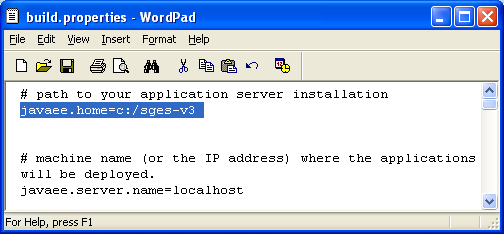
To (as in this case. Yours may be different and change accordingly)
# path to your application server installation
javaee.home=c:/sges-v3
Changing Glassfish Web Server admin Password
Then, change the following Glassfish admin password file path,
javaee.server.passwordfile=${javaee.home}/samples/bp-project/passwordfile
To (as in this case. Yours may be different and change accordingly)
javaee.server.passwordfile=${javaee.home}/passwordfile

Save and close the file.
Then, create the passwordfile file (without any extension) in the C:\sges-v3 folder.

Open the passwordfile with any text editor and put the following line of code (Glassfish default admin’s password),
AS_ADMIN_PASSWORD=adminadmin
Save and close the file.

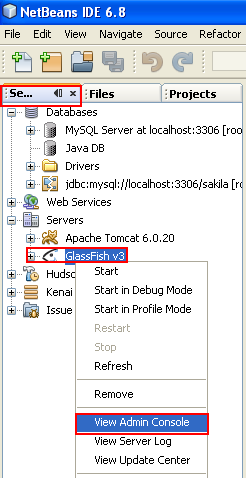
This is the Glassfish default administration username (admin) and password (adminadmin). If yours are different, change accordingly using either the Glassfish Admin Console (shown below) or the passwordfile and setting in the build.properties file as done previously.
Starting JavaDB Database
Next, start the JavaDB server if not started yet.
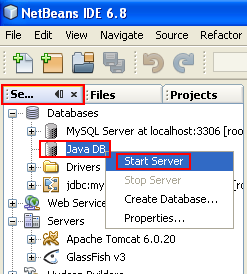
Make sure there is no error.

Starting Glassfish Web Server
Then, start the Glassfish v3 server if not started yet. In Services page, select GlassFish v3 link under Servers folder > right click mouse > select Start.


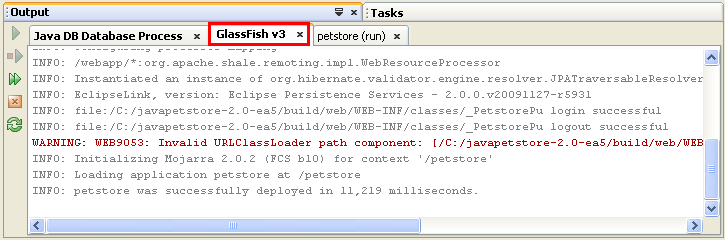
Make sure there is no error which is visible in Glassfish v3 output window.

Testing Glassfish Web Server
The Glassfish should be running now. You can test it by entering http://localhost:8080/ in the Internet browser address bar as shown in the following screenshot.
-----------------------------------------------------------------

Running Java Pet Store Application
Back to our Java Pet Store, now, run the setup script. In Files page, expand setup folder > select setup.xml folder > right click mouse > select Run Target menu > select setup sub menu.
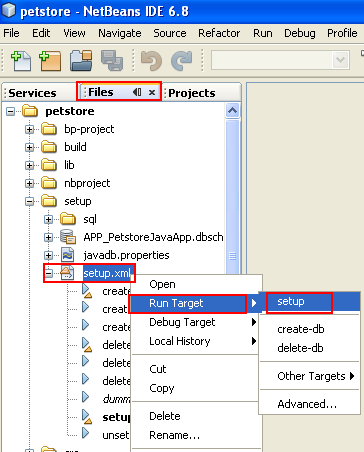
Make sure there is no severe error that can be seen in the output window.

The following is another clean run output messages.
check:
tools:
create-pool-local:
Registering jdbc-connection-pool PetstorePool.
ds=org.apache.derby.jdbc.ClientDataSource
check:
tools:
create-jdbc-connection-pool:
Deprecated syntax, instead use:
asadmin --port 4848 --host localhost --passwordfile c:/sges-v3/passwordfile --user admin create-jdbc-connection-pool [options] ...
com.sun.enterprise.admin.cli.CommandException: remote failure: A resource named PetstorePool already exists.
Command create-jdbc-connection-pool failed.
Result: 1
create-resource-local:
Registering jdbc resource jdbc/PetstoreDB.
check:
tools:
create-jdbc-resource:
Deprecated syntax, instead use:
asadmin --port 4848 --host localhost --passwordfile c:/sges-v3/passwordfile --user admin create-jdbc-resource [options] ...
Command create-jdbc-resource executed successfully.
delete-db:
driver=org.apache.derby.jdbc.ClientDriver
url=jdbc:derby://localhost:1527/petstore;create=true;
user=APP
password=APP
Executing resource: C:\javapetstore-2.0-ea5\setup\sql\javadb\delete.sql
9 of 9 SQL statements executed successfully
create-db:
Executing resource: C:\javapetstore-2.0-ea5\setup\sql\javadb\petstore.sql
417 of 417 SQL statements executed successfully
Executing commands
1 of 1 SQL statements executed successfully
setup:
BUILD SUCCESSFUL (total time: 11 seconds)
Finally, run the Java pet store demo project. From Projects page, select petstore project folder > right click mouse > select Run menu.
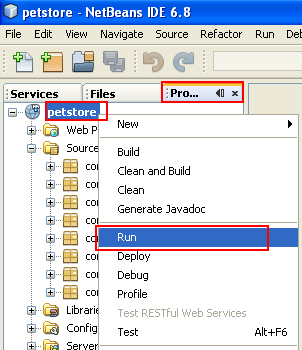
There should be no severe error(s) both for application and Glassfish web server.

Java Pet Store in Action
The following screenshots are the expected output.

Click the "Enter the Store" link and explore the site!


Your task: Click the Seller link and sell your pets!
java Pet Store 1 | Back to Main